Storm
A workflow orchestration system built on top of Conductor's cloud render farm service. Storm allows visual effects artists to create pipelines where tasks depend on the output of other tasks.

Background
Until recently I worked at Conductor Technologies. Conductor provides on-demand compute for the media and entertainment industry. Artists submit CG render jobs consisting of hundreds of tasks, each representing a frame of animation. The service runs these tasks on an array of machines at one of the hyperscalers. Since tasks are compute-intensive, running them in parallel allows artists to get results quickly and iterate on their work.
The problem
Tasks cannot communicate with each other, so while Conductor works well for a flat list of render tasks, it cannot support jobs where tasks depend on the output of other tasks.
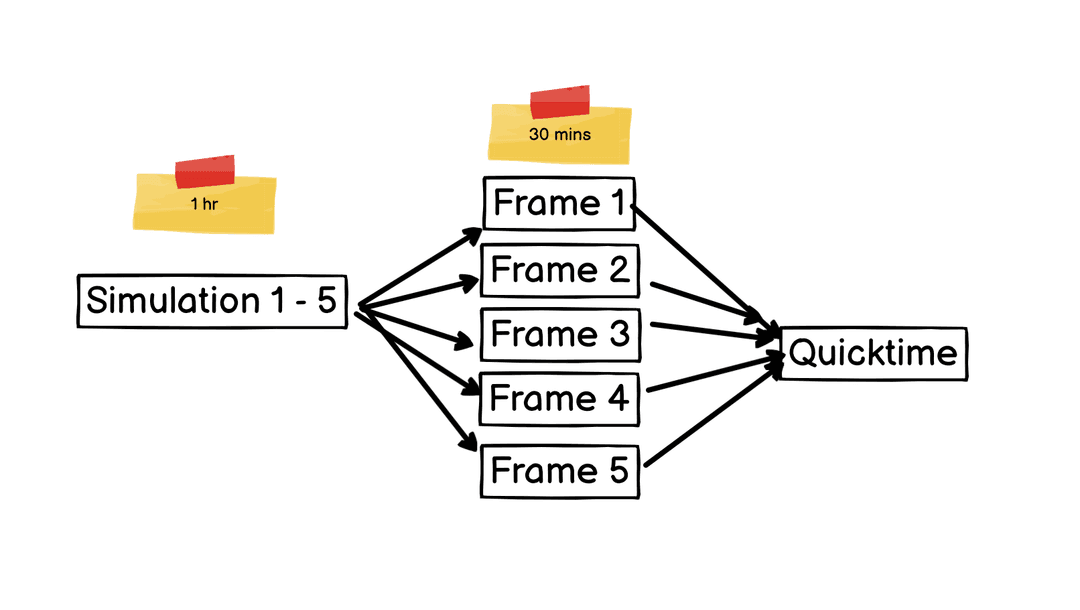
An example might be where an artist wants to run a fluid simulation that writes out cache files, render those caches, and then composite the images into a quicktime movie. Complex workflows like this are common in larger visual effects studios and require a graph to describe the dependencies.
I pitched the idea of building a DAG to my boss and got the green light. Storm was born.
The team:
- Jon - backend, cloud engineer
- Asher - my son and apprentice, focusing on aesthetics and UX
- Myself - designer, engineer, project lead
Kick off
I had already done some groundwork, but to get things properly started, we set up the project in Basecamp and met to shape the first phase. We experimented with libraries and settled on these key decisions:
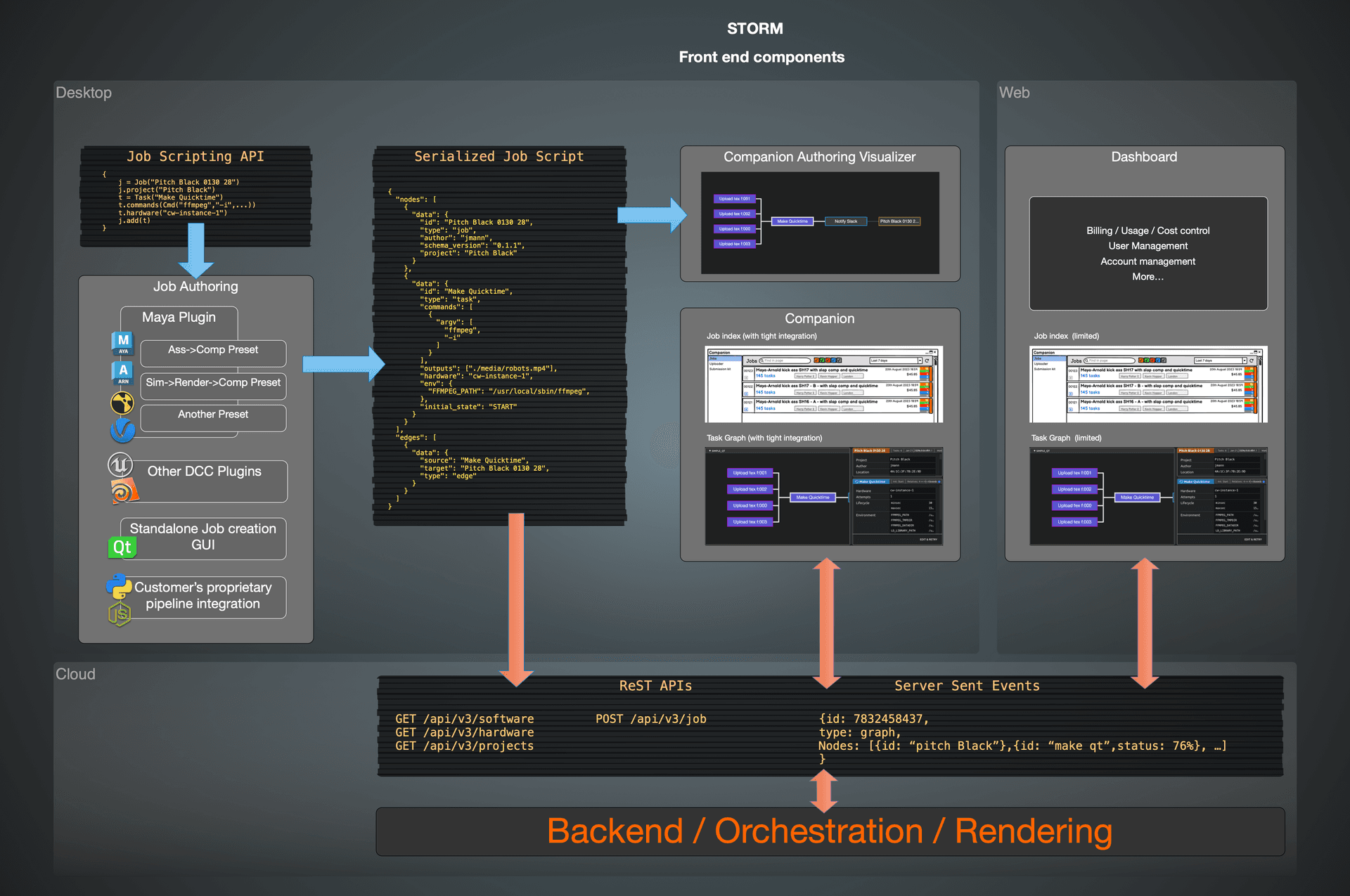
- Create a Python library/DSL for generating graphs, and a plugin for Maya which would use the DSL to send serialized graphs to the desktop app.
- Build the desktop app with Tauri, a cross platform framework for building with web technologies.
- Use NextJS and React for the front end and CytoscapeJS to visualize the graph.
- Jon to focus on the Workflow API, a layer between the desktop app and the cloud service made with Go. Communication between the desktop app and the workflow API would be via HTTP and Server-Sent Events.
- Forget about the web app for now, since it would be a subset of the desktop app and use similar tech.
Documentation
I've included a copy of the Storm documentation in this blog. I'll reference it where relevant to provide deeper insight into features.
The core of the project was DAG-based workflows, but the desktop app also presented the opportunity to solve many pain points of the legacy system. This is discussed under Customer flow later.
Composer & Monitor
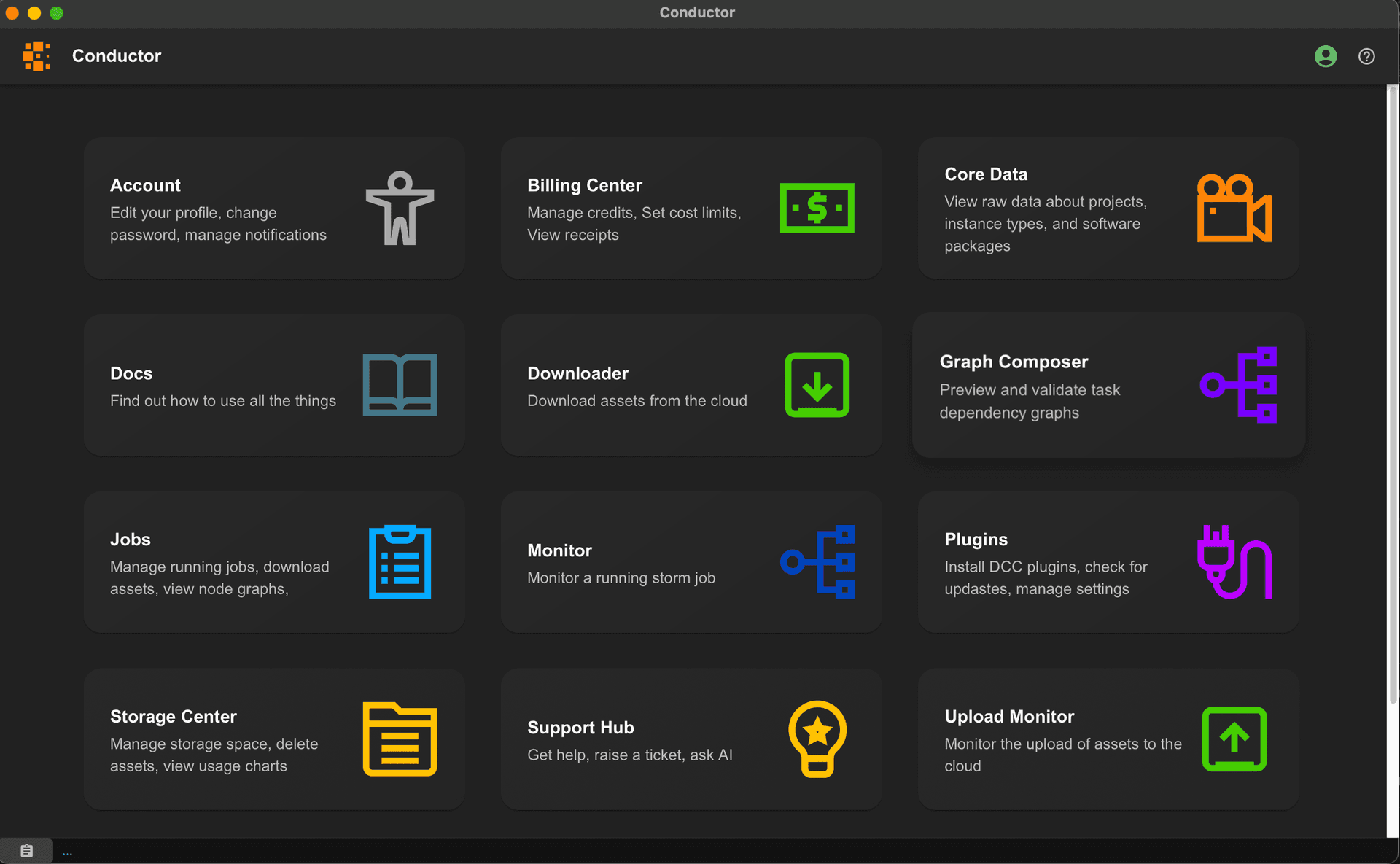
The Composer is where tasks are laid out as a visual graph before submission. Artists typically send the graph from their DCC (Digital Content Creation application) to the Composer. In this view, they can edit the graph or modify properties of tasks and other nodes. They then submit the tasks to be orchestrated by the Workflow API. This workflow is described in detail in the Slinky tutorial.
Once the tasks are submitted, the app switches to the Monitor view, which shows the status of the tasks as they are executed. The Monitor looks similar to the Composer, but with differences that shall be described later.
Multi-select and batch editing
Our first three months focused on getting the system working end-to-end for a preview at SIGGRAPH (computer graphics trade conference). At that time, the app handled only single node selection and editing. It quickly became clear we needed multi-selection and batch-editing in both the Composer and Monitor views.
If a frame fails to render due to running out of memory, the likelihood is that all frames in the sequence will fail. The artist will need a way to select all the tasks, switch them to a better spec machine, and retry them. Play the video to see multi-select and batch-edit in action.
UX challenges
- Selection mode: To drag a box around multiple nodes, the pointer must start on the canvas, not on a node. Dragging on the canvas was previously being used to pan the view, so we introduced separate pan/select modes. Switching modes is achieved by holding down the space bar.
- Multiple selection: When several nodes are selected, what should the node panel show? We copied Maya's behavior, showing the last selected node's attributes in the panel. This required selection tracking. The title bar shows "Node-name (+2)" to indicate that three nodes are selected.
- Batch editing: To edit several nodes in batch, the user needs to select which attributes to modify. Some attributes have different values for each node. The command to run on the remote machine typically contains a varying frame number, which users wouldn't want to edit in batch. Our solution was an edit panel where every attribute has an enable button. On save, only enabled and modified values are propagated to selected nodes. For single node selection, the edit panel shows all attributes.
The Monitor view
NOTE
The green play button and other bright green UI elements are temporary developer tools. The play button simulates advancing graph statuses by one step. This was necessary because the Workflow API development wasn't progressing as quickly as hoped.
With multi-selection and batch editing solved in the Composer view, we tackled the Monitor view, which was more tricky.
In the Monitor view, task nodes have several different statuses: holding, running, succeeded, and so on. When nodes are edited, the behavior is dependent on the status of the node. Editing a running node requires that the task be stopped and restarted with the new values. It also causes the previous configuration to be saved as a snapshot.
The screen recording below gives a clue as to the underlying complexities involved in marrying the concepts of batch editing, retries, status transitions, and history.
To get a better understanding of the state machine and the history feature, read the two sections of the documentation linked below.
We had two major eureka moments that eliminated a lot of complexity:
1. Skipped status
We were trying to solve the problem of failed tasks that were either false failures or not serious enough to block the whole workflow. Jon suggested a "continue on error" attribute, but that would have meant knowing beforehand that a failure on that node was not fatal.
I proposed adding a manual transition "Flip to success," but that meant information about the failure was lost and not visually clear.
The insight was to add a Skipped status, which allows users to bypass failed nodes to let the graph continue while making it easy to see at a glance which nodes were skipped.
2. Cascades
Cascades mean that if a task is retried, then any running or succeeded downstream tasks are reset to their initial state so they can run again when the retried task succeeds. It was assumed that cascades were optional, and in fact we though that implementing cascades would be harder than not implementing them.
However, the idea that the graph could exist in a state where tasks downstream from a failed node were in a succeeded or running state seemed very ugly to me. It would mean that users looking at the graph would not be able to figure out how it got into that illegal state.
With that in mind we agreed that the graph must always be in a state that's possible through the natural flow of dependencies. For a task to start running, all its upstream dependencies must have succeeded or have been skipped. See this in diagram form here. The only way to guarantee this was to ensure a retry always resets downstream nodes.
The screen recording below shows some nodes that have been skipped (purple) with downstream nodes in the success state. When a node is retried, downstream nodes are reset to their initial state and the graph as a whole has integrity.
Customer flow
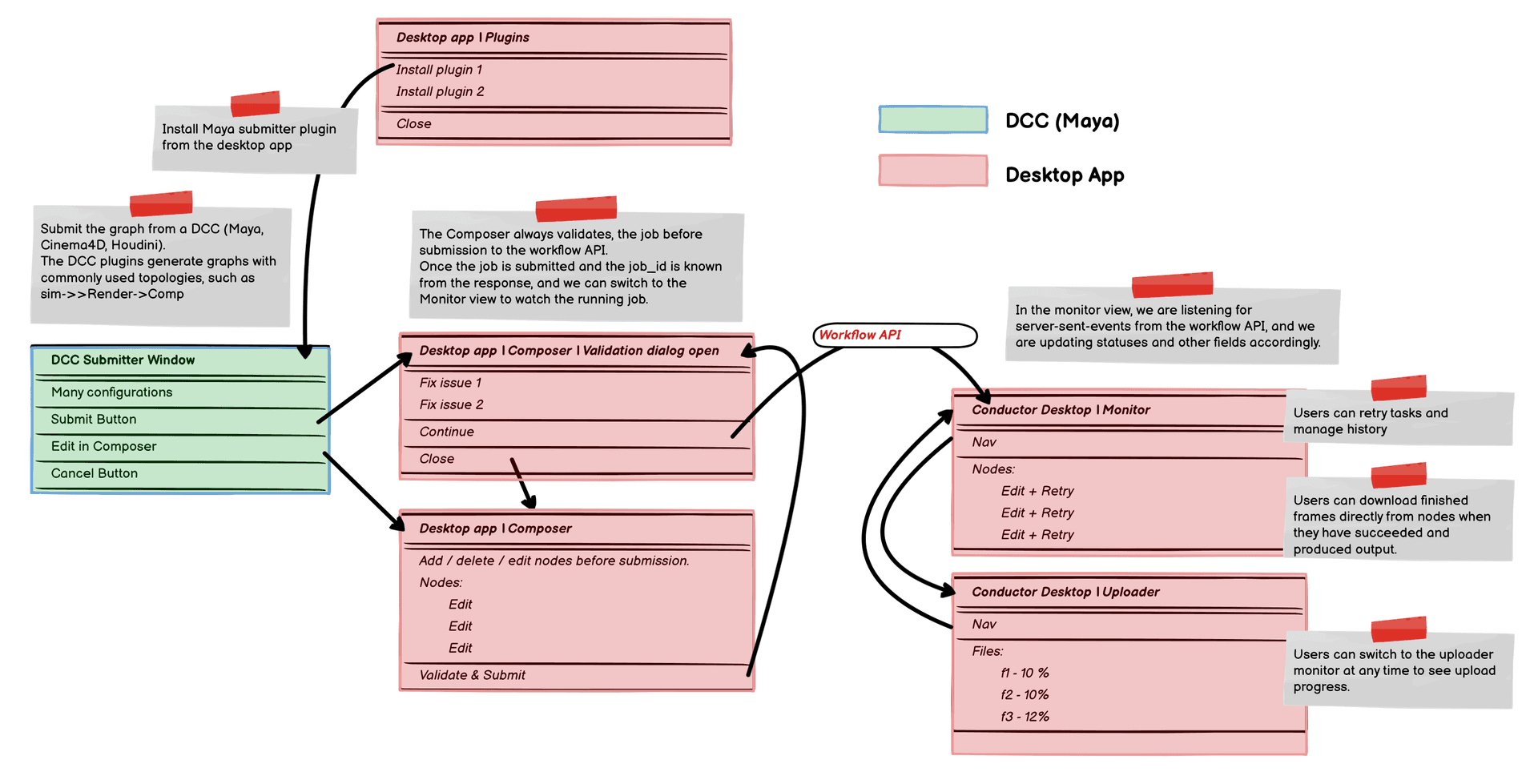
We touched earlier on the pain points of the existing customer experience. Customers have to switch context repeatedly between different applications.
- Start with the Companion app to install plugins
- Use the plugin in their DCC, such as Maya, to configure a submission
- Start a commandline uploader daemon for background uploading
- Go to the web app to monitor their job's progress
- Switch to either the Companion app to download files, or start a commandline downloader daemon
The new system was on track to eliminate most of that context switching, as illustrated in the diagram below.
Validation
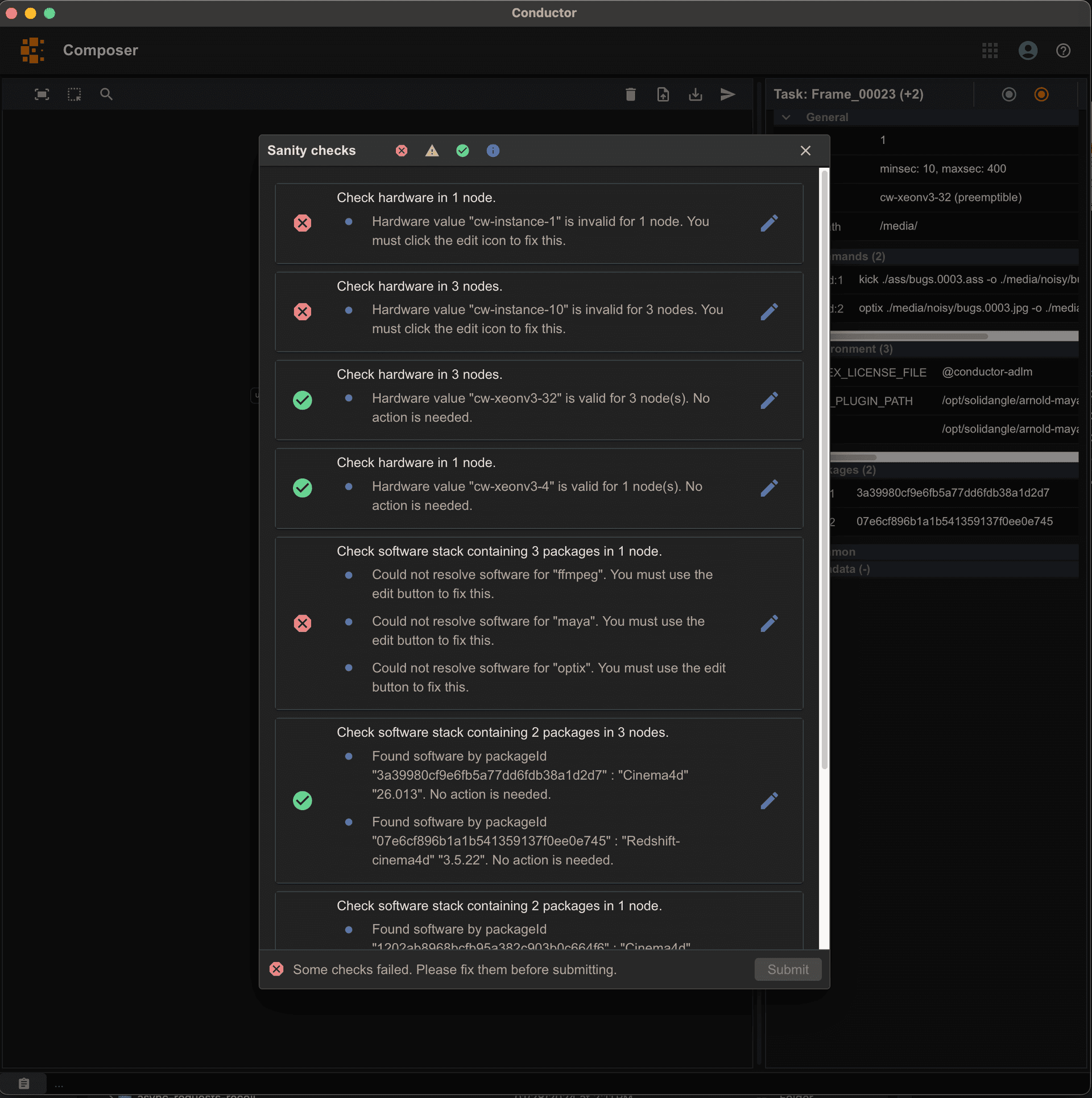
In the legacy system, validation logic is scattered across individual DCC plugins, leading to code duplication and inconsistent implementations. Users also have to fix issues manually.
In the redesign, validation is implemented once in the desktop app, and the API allows fixer actions to be added for each validation entry, as shown in the screenshot.
Uploader
Currently, customers have to wait until uploads finish before they regain control of their DCC. Alternatively, they must use the command line to run an uploader in daemon mode. To solve this poor CX, Asher built an uploader GUI that shows progress from a background uploader daemon directly in the desktop app. Play the video to see it in action.
Plugins store
The legacy companion app included an app-store-like plugins page, but it suffered from several issues that needed addressing.
- It exposed too much info about older versions and prereleases, which confused customers and led to an unnecessary burden on support.
- It assumed all the plugins were Python packages, and that they could be installed with any version of Python, like the version we bundled with the app.
- It asked customers to do things in the wrong order, such as choose an install location before hitting the install button.
In the new app, we redesigned the plugins page with these guidelines:
- The mechanism for installing plugins is the responsibility of the plugin developer, not the desktop app. If it's a Python package, they handle finding the correct Python version for installation. Their plugin might not be hosted on PyPI - it could be on GitHub or elsewhere. It could be a self-installer, a Node package, or anything else. The desktop app shouldn't be expected to know these details. Instead, it provides an API for plugin developers to register installation scripts and manifest data, allowing the desktop app to display and run the installation scripts without knowing their internals.
- The Plugin install cards should be simple and concise with one action, install, which installs the latest version. This discourages customers from installing prereleases or older versions.
- IT staff should still be able to install older versions and prereleases. They should also be able to download the install script to run outside the desktop app.
Wrapping up
The project was hard work but enjoyable. We delivered an end-to-end demo for SIGGRAPH after the first few months. The project was on track to ship at the end of March but was unfortunately cancelled in February.
The most challenging part was designing state transitions for tasks with history tracking and retries, combined with batch-edit functionality. These features were complex but critical for customers. In the legacy system, users had to resubmit entirely new jobs just to make minor changes to running tasks.

Everything should be made as simple as possible, but not simpler.
